NEW HEALTHY LIFE • Zoom made simple
STEP-BY-STEP • ANDROID FIRST

Zoom help, with pictures

Learn to install Zoom Workplace, create an account if you want one, join with or without signing in, switch on your microphone and camera, raise your hand, chat, and show the right name.

Important: The guide now combines official Zoom reference images with clearly labelled teaching screens. Official images may show a different app version or iPhone layout; Android buttons can move. Follow the button name on your own phone.
OFFICIAL REFERENCE PICTURES

Real Zoom reference images, with arrows

These images come from Zoom’s official support website. Red arrows show the control to look for. The first official welcome screen is an iOS reference image, so your Android screen may look different; use the button labels below as the guide.

1. Join without signing in
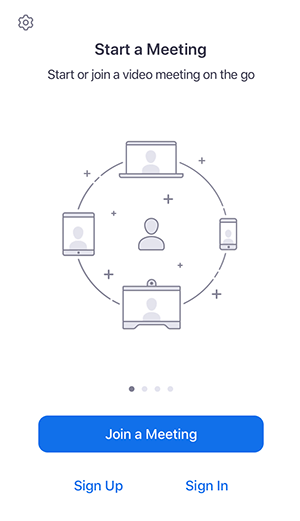
Official Zoom welcome screen showing Join a Meeting, Sign Up and Sign InTAPJoin a Meeting

Tap Join a Meeting / Join meeting. Enter the meeting ID and the name you want others to see.

Source: Zoom Workplace mobile guide

2. Find the Join button

Official Zoom Join button iconTAP

On your phone, look for Join or Join a meeting. The layout may differ from this official icon reference.

Source: Zoom official guide

3. Raise your hand

Official Zoom Reactions button iconTAP

Tap Reactions, then Raise Hand. If you do not see it, tap More first. Tap Lower Hand when finished.

Source: Zoom: Raising your hand

4. Microphone and camera

Zoom meeting
LIVE MEETING
🎙Unmute
▣Start Video
•••More
↑ TAP CONTROL

Tap Unmute to speak; tap Mute to silence yourself. Tap Start Video to show your camera, or Stop Video to hide it.

This control panel is a labelled teaching illustration; use the current Zoom controls on your phone.

Source: Zoom meeting controls

India server note: Zoom has India data centres, but the app does not guarantee every part of a meeting stays in India. Region-routing controls depend on the account and plan. Read the official details before promising India-only processing. Zoom data-centre settings

1. Download Zoom on Android

Use the official Google Play listing. Avoid look-alike apps and APK download websites.

1

Open Google Play

Google Play
🔍 Search apps & games
Zoom Workplace
Zoom Communications, Inc.
INSTALL
Illustration of the button to look for
  1. Tap the Play Store icon on your phone.
  2. Search for “Zoom Workplace”. Check the publisher is Zoom Communications, Inc.
  3. Tap Install, wait, then tap Open.
Open official Play Store page
2

What appears when Zoom opens?

Zoom Workplace
Sign in
Join a meeting
OR
Sign up

Three different choices

  • Join a meeting — join as a guest without an account, if the host allows it.
  • Sign up — create your own free Zoom account.
  • Sign in — use an account you already created.

2. Create a Zoom account (optional)

Sign up
Date of birth (if asked)
Email address
Continue / Sign up
You may see a different flow
  1. Tap Sign up.
  2. Enter the details requested by Zoom, such as date of birth and email, if shown.
  3. Check your email for Zoom’s verification message and follow its instructions.
  4. Return to the app and Sign in using your account details or an offered sign-in option.
Never share your password or verification code with a meeting host or another participant.

Already have an account?

Sign in
Email / username
Password
Sign in
Or choose an available provider

Tap Sign in, enter your registered email and password, then tap Sign in again. If you forgot the password, use Zoom’s Forgot password option.

3. Join the NEW HEALTHY LIFE meeting

OPTION A • NO SIGN-IN

Join as a guest

Join a meeting
Meeting ID
Your name: Priya Sharma
☐ Turn off my video
Join
  1. Open Zoom and tap Join a meeting. You do not need to sign up first.
  2. Enter the meeting ID from the organiser, or open their meeting link.
  3. In the Name field, type the name you want others to see, for example “Priya Sharma”. This is the meeting display name, not a Zoom account.
  4. Tap Join. Enter the passcode if asked and wait for the host to admit you.
OPTION B • SIGNED IN

Join while signed in

Zoom Workplace
Join
Meeting ID
Your name / profile name
Join meeting
  1. Open Zoom and sign in if you want to use your account.
  2. Tap Join, enter the meeting ID, and check the displayed name.
  3. Tap Join and enter the passcode if required.
A host may require participants to be signed in. If Zoom refuses guest access, follow the host’s instructions.

4. Turn your microphone and video on

Microphone: speak / mute

Meeting in progress
● ● ●
🎙Unmute
▣Start Video
☻Participants
  1. If you see Join Audio, tap it and choose Wi-Fi or Cellular Data / Internet Audio.
  2. A microphone with a red slash or a label Unmute usually means you are muted. Tap Unmute to speak.
  3. Tap Mute when you want your sound off. The host may mute participants.
If the mic does not work, open phone Settings → Apps → Zoom → Permissions → Microphone → Allow. The exact menu may vary.

Camera: show / hide your video

Meeting in progress
▣
🎙Mute
▣Start Video
•••More
  1. Tap Start Video (camera icon) to show your camera.
  2. Tap Stop Video to turn it off again.
  3. If asked, allow camera permission. You can keep video off if you prefer, unless the host’s rules require it.
If the controls disappear, tap the middle of the screen once to show them.

5. Raise your hand, chat, and change your name

Raise Hand (haath uthana)

More / Reactions
✋ Raise Hand
👏 Clap
💬 Chat
  1. Tap the screen to show controls.
  2. Tap More (•••) or Reactions. Look for Raise Hand and tap it.
  3. To lower your hand, open the same menu and tap Lower Hand, if shown.

If you cannot find it, swipe the meeting toolbar or check More. The host may control participant features.

Chat: write a message

Meeting chat
Everyone
Hello, I have a question…
Send ➤
  1. Tap Chat, or tap More and then Chat.
  2. Tap the message box, type your message, then tap Send.
  3. If a recipient option appears, choose Everyone or the intended person carefully.
Do not post private health details, passwords, OTPs, or personal documents in group chat.

Change your name during the meeting

Participants
You — Guest
Rename
Type display name
Save / OK
  1. Tap Participants.
  2. Tap your own name. Depending on the version, tap More (•••) or Rename.
  3. Type the name you want the group to see, then tap Rename / Save / OK.
If Rename is missing or blocked, the host has disabled it. Ask the host to change your display name.

6. Leave the meeting safely

Meeting controls
•••
🎙Mute
▣Video
↗Leave
  1. Tap the screen to show controls.
  2. Tap Leave, usually near the top-right or bottom-right.
  3. Confirm Leave Meeting if asked. Do not tap End for Everyone unless you are the host and intend to end the meeting.

Quick fixes if something does not work

  • No sound? Tap Join Audio and choose Internet Audio / Wi-Fi or Cellular Data.
  • Others cannot hear you? Tap Unmute and check phone microphone permission.
  • Video is black? Tap Start Video and check camera permission.
  • Cannot join? Check the meeting ID, passcode, internet, and whether the host has started the meeting.
  • Waiting room? Stay there until the host admits you.
For NEW HEALTHY LIFE members

The organiser must send you the real meeting link or Meeting ID and passcode. This tutorial does not contain the actual daily meeting link yet. Do not share a private invite publicly.

Official Zoom support: the app can be joined without signing in unless the host requires authentication. For exact current details, see Zoom’s help pages.

Zoom: Getting started on mobile · Zoom: Join without an account · Zoom Download Center