1. Join without signing in
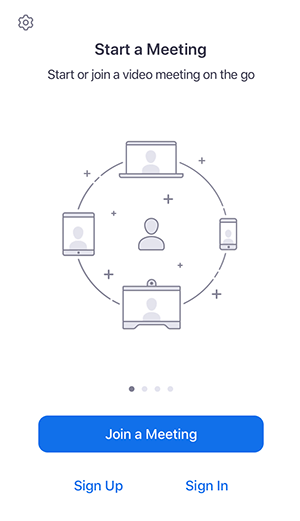 TAPJoin a Meeting
Tap Join a Meeting / Join meeting. Enter the meeting ID and the name you want others to see.
Source: Zoom Workplace mobile guide
Learn to install Zoom Workplace, create an account if you want one, join with or without signing in, switch on your microphone and camera, raise your hand, chat, and show the right name.
These images come from Zoom’s official support website. Red arrows show the control to look for. The first official welcome screen is an iOS reference image, so your Android screen may look different; use the button labels below as the guide.
TAPJoin a MeetingTap Join a Meeting / Join meeting. Enter the meeting ID and the name you want others to see.
Source: Zoom Workplace mobile guide
 TAP
TAPOn your phone, look for Join or Join a meeting. The layout may differ from this official icon reference.
Source: Zoom official guide
 TAP
TAPTap Reactions, then Raise Hand. If you do not see it, tap More first. Tap Lower Hand when finished.
Source: Zoom: Raising your hand
Tap Unmute to speak; tap Mute to silence yourself. Tap Start Video to show your camera, or Stop Video to hide it.
This control panel is a labelled teaching illustration; use the current Zoom controls on your phone.
Source: Zoom meeting controls
Use the official Google Play listing. Avoid look-alike apps and APK download websites.
Three different choices
Tap Sign in, enter your registered email and password, then tap Sign in again. If you forgot the password, use Zoom’s Forgot password option.
If you cannot find it, swipe the meeting toolbar or check More. The host may control participant features.
The organiser must send you the real meeting link or Meeting ID and passcode. This tutorial does not contain the actual daily meeting link yet. Do not share a private invite publicly.
Official Zoom support: the app can be joined without signing in unless the host requires authentication. For exact current details, see Zoom’s help pages.
Zoom: Getting started on mobile · Zoom: Join without an account · Zoom Download Center